
 Add to Chrome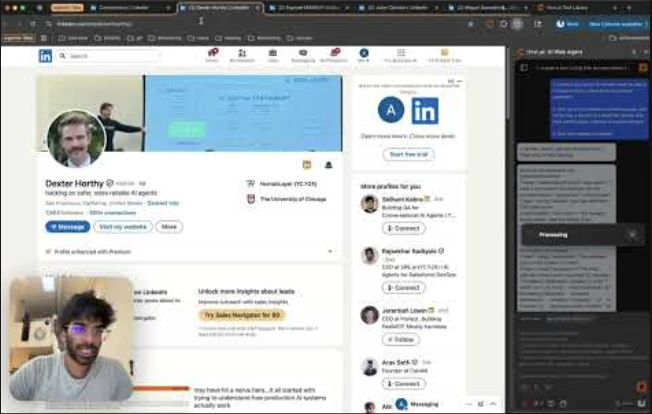
rtrvr.ai agents aren't limited to browsing. They can call external APIs, query databases, and run custom logic using the Model Context Protocol (MCP) or secure JavaScript tools. Tools are a shared primitive — create them once, use them across the extension, cloud, and API.
AI Subroutines
AI Subroutines are reusable tools generated by rtrvr.ai from natural-language intent, recordings, API docs, or the current webpage context. They are ideal when you want a stable capability such as “send a LinkedIn DM”, “create a HubSpot contact”, or “submit this internal form” without rebuilding the workflow each time.
- 01
Generate a subroutine from a natural-language request
- 02
Generate a subroutine from a recording to capture a real interaction flow
- 03
Point the generator at API docs or an authenticated webpage and let it infer the tool shape
- 04
Save the resulting tool once and reuse it from chats, workflows, schedules, and API-triggered runs
Direct Tool Calls
When you know exactly which tool to use, bypass the AI planner with the @toolName syntax. This is highly efficient for repetitive tasks and gives you direct control.
@act(action="click submit")              → Direct browser action
@extractToSheets(prompt="get emails")     → Fast extraction across open tabs
@hubspot_lookup(email="user@example.com") → Call a custom/MCP tool directlyMCP Servers
Connect to any Model Context Protocol server by pasting its URL. Once connected, all MCP tools become available in your chat with @toolname syntax. rtrvr.ai supports SSE (Server-Sent Events), HTTP Streamable, and OAuth-protected servers.
- 01
Open the Tools section in extension settings
- 02
Paste the MCP server URL (e.g., your company's internal MCP, or a public one)
- 03
Authenticate if required (OAuth flow handled in-browser)
- 04
All server tools appear instantly — use them with @toolname in chat
AI Tool Generator
Don't have an MCP server? The Tool Generator sub-agent can create AI Subroutines automatically. Just describe what you need in plain English — or better yet, point the agent at an API documentation page, an authenticated web app, or a recording and let it build the tool for you.
"Find my HubSpot API keys and create a tool to load contacts"

"Use this onscreen API docs to create a tool that searches our internal database"

"Create a tool that calls the OpenWeatherMap API with a city name and returns the forecast"

"Turn this LinkedIn recording into an AI Subroutine that opens Message, writes a DM, and sends it"Create a Subroutine From a Recording
Recordings are one of the fastest ways to create robust AI Subroutines. rtrvr.ai analyzes the DOM interactions and nearby network traffic, then chooses the best replay strategy: semantic DOM automation when the UI flow is the stable source of truth, or network-backed execution when the captured request is clearly first-party and reusable.
- 01
Record the task once in the extension
- 02
Open the recording and choose to generate a tool/subroutine
- 03
The generator uses the recording as grounding context for buttons, composers, waits, and API shape
- 04
Save the generated tool and call it directly with @toolName or from workflows
Recordings capture the page's own XHR/fetch traffic — headers, bodies, and status — which is what makes network-backed subroutines possible. For how auth is handled after the tab closes, and how CSRF and client-signed requests are treated, see From Recording to Subroutine.
Custom JavaScript Tools
Write your own tools in JavaScript or let the AI build them. Subroutines can run as sandboxed JavaScript tools or as webpage tools that execute in the authenticated browser context. You can store API keys as default parameters — they remain local to your machine and are never sent to rtrvr.ai servers.
Two Execution Styles
| Style | Best For | Runtime Implications |
|---|---|---|
| Sandbox tool | Pure computation, public APIs, data transforms, authenticated APIs with local API keys, fetched HTML parsed with DOMParser | Runs in an isolated extension JavaScript runtime. It can use parameters, defaults, fetch, and rtrvr.* agent helpers, but it does not read the live page's document, window, localStorage, or application JavaScript state. |
| Webpage tool / AI Subroutine | Logged-in websites, DOM actions, page cookies, in-page fetch, rich editors, CSRF-protected requests | Opens or reuses a browser tab, waits for load plus any settle delay, injects the runtime, then runs in the authenticated page context with page window, document, cookies, localStorage, in-page fetch/XHR, and webpage rtrvr helpers. |
Webpage URLs and Parameters
Webpage tools need a page to run inside. At call time, URL selection uses this priority: urls parameter first, then url, then the saved defaultUrls. The runtime deduplicates the chosen URLs, opens each page, waits for load, applies pageExecution.settleMs, and injects url, urls, and tabId into your code.
- 01
defaultUrlscan contain static URLs, one URL per entry. - 02
Use simple
${paramName}placeholders when the destination depends on a parameter. - 03
Only simple placeholders are supported. Do not use expressions like
${handle.replace('@', '')}, ternaries, or nested paths. - 04
If a placeholder is unresolved, execution fails during URL resolution before opening a tab.
- 05
If the parameter is a full URL, make it the whole template:
${profileUrl}. If it is an ID or handle, build the URL around it:https://x.com/${handle}.
// Static page target
defaultUrls: ["https://news.ycombinator.com/news"]

// Identifier parameter: the runtime opens https://x.com/rtrvr_ai
parameters: {
  handle: { type: "string", description: "X handle without normalization expressions" },
}
defaultUrls: ["https://x.com/${handle}"]

// Full URL parameter: use the parameter as the whole template
parameters: {
  profileUrl: { type: "string", description: "Complete profile URL" },
}
defaultUrls: ["${profileUrl}"]
pageExecution.settleMs controls the extra wait after the tab reports loaded. Leave it blank to use the runtime default of 1500 ms, set it to 0 to skip the extra wait, or increase it when a single-page app needs more time to render client-side content.
executionMode: "webpage",
defaultUrls: ["https://app.example.com/orders/${orderId}"],
pageExecution: {
  settleMs: 2500,
},
code: `
const title = document.querySelector("h1")?.textContent?.trim();
return { url, urls, tabId, title };
`
How Parameters Work
When you define parameters for a custom function, they become available as JavaScript variables in your code. The system automatically converts each parameter into a const declaration before running your code.
// Parameters defined: firstName (string), lastName (string), apiKey (string, default)
// Your code — parameters are pre-declared as const variables:

const res = await fetch(`https://api.example.com/users?name=${firstName}+${lastName}`, {
  headers: { "Authorization": `Bearer ${apiKey}` }
});
const data = await res.json();
return data.results;- 01
Define parameters with names, types, and optional defaults
- 02
Reference parameters directly as variables (firstName, not params.firstName)
- 03
Parameters are injected as const declarations before your code runs
- 04
Return any JSON-serializable value — async/await is fully supported
- 05
console.log() output is captured and shown in results for debugging
Code Examples
// Simple greeting
return `Hello ${firstName} ${lastName}!`;

// Math
return price * quantity * (1 + taxRate);

// API call
const r = await fetch(url);
return await r.json();

// Transform
return items.map(i => i.name).join(", ");
Parameter names must be valid JavaScript identifiers (letters, numbers, underscores — no spaces).
Webpage Helper Functions (`rtrvr`)
Webpage tools and AI Subroutines can use the built-in rtrvr helper namespace to interact with the live page without dropping down to brittle manual DOM code. These helpers are especially useful for authenticated flows, contenteditable editors, CSRF-protected requests, and waiting for UI state transitions.
| Helper | Use |
|---|---|
rtrvr.find({ role, name, text, placeholder }) | Find a semantic page target and return an opaque handle |
rtrvr.click(handleOrTarget) | Click a previously found handle or a semantic target |
rtrvr.type(handleOrTarget, value, { clear, submit }) | Type into inputs or rich contenteditable editors |
rtrvr.waitFor(targetOrFn, { timeoutMs }) | Wait for the next UI state, modal, composer, or control |
rtrvr.waitForUrl(match, { timeoutMs }) | Wait for navigation or route changes |
rtrvr.request(url, init) | Make authenticated in-page requests using the page context |
rtrvr.requestJson(url, init) | Same as request, but parses JSON when available |
rtrvr.getCsrfToken() | Read the current page CSRF token for sites that require it |
rtrvr.getCookie(name) | Read a cookie value from the current page |
// Example webpage tool body
const button = await rtrvr.find({
  role: "button",
  name: /Connect/i,
});

if (!button) {
  return { success: false, error: "Connect button not found." };
}

await rtrvr.click(button);

const csrfToken = rtrvr.getCsrfToken();
return await rtrvr.requestJson("/voyager/api/example", {
  method: "POST",
  headers: {
    "content-type": "application/json",
    "x-csrf-token": csrfToken,
  },
  body: JSON.stringify({ ok: true }),
});
Agent Capabilities (`rtrvr.*` built-ins)
Both sandbox and webpage tools can call the agent's internal capabilities through the rtrvr namespace. These helpers share names and parameter shapes with the rtrvr MCP (for example get_page_data, take_page_action, list_skills), so code written against the MCP translates directly inline. They reuse the user's existing Google auth and credit allowance — don't hand-roll OAuth or tree parsing yourself.
Page data & actions
| Helper | Returns / Effect |
|---|---|
await rtrvr.getPageTree({ tabId?, onlyTextContent?, disableAutoScroll? }) | { tabId, url, title, tree, elementLinkRecord, accTreeId } — same shape as MCP get_page_data |
await rtrvr.pageAction({ tool, args, tabId? }) | Run a single system tool on a tab; mirrors MCP take_page_action |
await rtrvr.listTabs() | List browser tabs as { tabId, url, title, active, windowId }[] |
Supported pageAction tools include: click_element, type_into_element, type_and_enter, select_dropdown_value, clear_element, focus_element, hover_element, right_click_element, double_click_element, press_key, scroll_page, scroll_to_element, drag_element, drag_and_drop, adjust_slider, goto_url, go_back, go_forward, refresh_page, open_new_tab, switch_tab, close_tab, google_search, describe_images, discover_and_extract_network_data, copy_text, paste_text, upload_file, wait_action, wait_for_element, solve_captcha. See Browser Tools for argument schemas.
Google Sheets
| Helper | Returns / Effect |
|---|---|
await rtrvr.createSheet({ title, tabTitle?, headers? }) | Creates a spreadsheet in the user's Drive. Returns { sheetId, sheetTab, sheetUrl }. |
await rtrvr.appendRow({ sheetId, sheetTab?, values | rows }) | Append one row (values) or many rows (rows). Returns { appended, updatedRange, updatedRows, updatedCells }. |
await rtrvr.appendColumn({ sheetId, sheetTab?, values, header? }) | Append a new rightmost column. Optional header is written before values. Returns { appended, column, updatedRange, updatedRows, updatedCells }. |
await rtrvr.readSheet({ sheetId, range? }) | Read an A1 range. Returns { range, rows }. |
await rtrvr.updateRange({ sheetId, range, rows, sheetTab?, allowFormulas?, clear? }) | Update EXISTING cells in place by A1 range (e.g. "D2:D16", or "B2" for one cell); rows is an array of row arrays covering the range. Strings starting with = + - @ are written as literal text (formula-injection guard) unless allowFormulas: true. Pass clear: true INSTEAD of rows to blank the range's values (rows/columns are not structurally deleted). Returns { updated, updatedRange, updatedRows, updatedCells, nonEmptyValues }, or { cleared, clearedRange } for a clear. The way to CHANGE values already in a sheet — never retype cells through the Sheets UI. |
Attached files (full text)
| Helper | Returns / Effect |
|---|---|
await rtrvr.readFile({ fileIndex, offset?, limit? }) | A slice of an attached file's COMPLETE text, re-extracted from the original upload (docx/xlsx/pptx/pdf/csv/json/txt). Returns { text, totalChars, offset, returnedChars, hasMore, nextOffset }; limit ≤ 20,000 chars (default 10,000) — page with offset: nextOffset. The prompt inlines at most 100,000 chars of a file and ends a cut one with a [truncated: showing X of Y characters …] marker; this is how the rest is read. Free — no LLM call. |
await rtrvr.searchFile({ fileIndex, query, regex?, caseSensitive?, maxMatches?, contextChars? }) | Keyword or regex search over that same complete text. Returns { matches: [{ offset, match, line, context }], totalMatches, truncated } (≤25 matches); seek with readFile({ fileIndex, offset: match.offset }) instead of paging. Free. |
User skills (persistent memory)
| Helper | Returns / Effect |
|---|---|
await rtrvr.readSkill({ name }) | Read one skill file's full markdown as a file-shaped object (extractedText). Mirrors MCP get_skill. |
await rtrvr.saveSkill({ name, description?, content }) | Create or replace a skill file (content ≤16K chars). Mirrors the agent's review-pass memory writes. |
Recordings & tool creation
Use recordings when the agent needs an example of the real interaction path. recordingId is the convenient form; recordingContext is the lower-level backend field. Passing either one to act, extract, or createTool grounds that subroutine in the captured DOM and network context.
| Helper | Returns / Effect |
|---|---|
await rtrvr.listRecordings() | List recording metadata as { recordingId, recordingName, captureTimestamp }[]; full recording payloads are not returned. |
await rtrvr.startRecording({ name, tabId? }) | Start recording DOM interactions and network calls. Returns { recordingId, recordingName, state }. |
await rtrvr.finishRecording({ timeoutMs? }) | Stop the active recording and wait for upload when possible. Returns { recordingId, recordingName, uploadStatus, metadata?, warnings? }. |
await rtrvr.createTool({ userInput, tabIds?, recordingId?, recordingContext?, generationMode?, editContext? }) | Create a reusable custom tool with the custom tool generator. Defaults generationMode to "save"; generated tools should not call createTool recursively. |
await rtrvr.customToolGenerator({ userInput, tabIds?, recordingId?, recordingContext?, generationMode?, editContext? }) | Alias for createTool, kept for explicit access to the generator. Prefer createTool for new tools; do not generate tools that call either helper recursively. |
Agent sub-routines
When deterministic helpers aren't enough, you can invoke the same planner-backed sub-agents the chat experience uses. These helpers mirror the rtrvr MCP act_on_tab, extract_from_tab, and processText endpoints.
| Helper | Returns / Effect |
|---|---|
await rtrvr.act({ userInput, tabIds?, schema?, recordingId?, recordingContext? }) | Run the Act agent across one or more tabs (navigation, clicks, form fills), optionally grounded in a recording. Returns { data, warnings, creditsUsed }. Mirrors MCP act_on_tab. |
await rtrvr.extract({ userInput, tabIds?, schema?, recordingId?, recordingContext? }) | Structured extraction across tabs, optionally grounded in a recording. Returns { data, jsonData, warnings, creditsUsed }. Mirrors MCP extract_from_tab. |
await rtrvr.processText({ textInputs, taskInstruction, schema? }) | Summarize or transform text inputs via the LLM. Returns { data?, text?, warnings, creditsUsed }. Especially useful for parsing structured JSON out of unstructured strings — pass any text blob plus a schema and the helper returns typed data matching it. |
Cloud Scrape at Scale (`rtrvr.scrape`)
When a task needs to scrape *many* URLs — roughly 30+, and especially 100+ — or hits sites that rate-limit or bot-block local access, rtrvr.scrape runs the whole list on rtrvr's cloud browsers behind rotating proxies instead of in the user's local browser. It chunks large lists into batches of 10 (the per-request cap) and fans them out with bounded concurrency, so a generated plan can hand it the full URL list in one call. The same proxy-backed infrastructure powers the standalone Scrape API.
| Helper | Returns / Effect |
|---|---|
await rtrvr.scrape({ urls, settings?, timeoutMs?, response?, concurrency?, batchSize? }) | Cloud-scrape an array of URLs of any length behind rotating proxies. Returns { tabs, tabCount, succeeded, failed, usageData, creditsUsed, summary }, where each tabs[] entry is { url, title, status, content?, tree?, error? } in input order. tree is the same accessibility-tree string rtrvr.getPageTree returns; pair it with rtrvr.processText for structured extraction. |
// Bulk-scrape 100+ URLs that would be rate-limited locally, then parse the results.
const { tabs, succeeded, failed, creditsUsed } = await rtrvr.scrape({
  urls: productUrls, // any length — chunked into batches of 10 automatically
});

const rows = tabs
  .filter((t) => t.status === "success")
  .map((t) => [t.url, t.title ?? ""]);

console.log(`Scraped ${succeeded}/${tabs.length} (${failed} failed) for ${creditsUsed} credits`);// Compose planner-backed sub-agents with deterministic helpers.
const { data: leads } = await rtrvr.extract({
userInput: "Pull each visible lead's name, email, and company",
schema: {
type: "array",
items: {
type: "object",
properties: {
name: { type: "string" },
email: { type: "string" },
company: { type: "string" },
},
},
},
});
// processText shines for string -> JSON: pass raw text + a schema, get typed data.
const rawEmailBody = await rtrvr.callTool("fetchInboundEmail", { id: emailId });
const { data: parsed } = await rtrvr.processText({
textInputs: [rawEmailBody.body],
taskInstruction: "Extract the sender intent, requested meeting time, and any cited deal names.",
schema: {
type: "object",
properties: {
intent: { type: "string" },
requestedMeetingTime: { type: "string" },
dealNames: { type: "array", items: { type: "string" } },
},
required: ["intent"],
},
});
const { sheetId } = await rtrvr.createSheet({
title: "Lead outreach",
headers: ["name", "email", "company", "intent", "deals"],
});
for (const lead of leads) {
await rtrvr.appendRow({
sheetId,
values: [lead.name, lead.email, lead.company, parsed.intent, (parsed.dealNames || []).join(", ")],
});
}
return { sheetId, count: leads.length };Tool composition
A subroutine can call any other tool the user has — that includes user-authored custom tools and every MCP server tool the user has connected. The execution environment looks the tool up by name, dispatches MCP calls through the connected MCP client, and dispatches user tools through the same sandbox or webpage runtime that powers them in chat. There is no separate plumbing to wire up — connect a HubSpot MCP server once and await rtrvr.callTool('hubspot.createContact', { email }) works inside any subroutine.
When the tool generator builds a subroutine, the prompt is given the user's full tool list (custom + MCP, with parameter schemas and [MCP] / [custom] badges) so the LLM can wire calls correctly without you re-pasting the spec. Use await rtrvr.listTools() at runtime if you ever need to introspect what's available.
| Helper | Returns / Effect |
|---|---|
await rtrvr.callTool(name, params) | Call another custom tool or MCP server tool by name. Resolution: the runtime looks the tool up by name, validates params against its schema, and dispatches — MCP tools through the connected MCP client (e.g. HubSpot, Linear), user tools through the same sandbox/webpage runtime they use in chat. Returns the callee's raw result. |
await rtrvr.listTools() | List every tool the current user has available to callTool — both custom tools and MCP server tools — each with { name, description, parameters, source: 'custom' | 'mcp' | 'predefined' }. |
await rtrvr.invokeBuiltin(helper, args) | Escape-hatch that invokes any builtin by name — equivalent to rtrvr.<helper>(args). |
// MCP + custom-tool composition in a single subroutine.
// Assumes the user has connected the HubSpot MCP server and authored a custom
// tool called `fetchInboundEmail`. Both surface as `rtrvr.callTool(name, params)`
// without any extra glue.

const email = await rtrvr.callTool("fetchInboundEmail", { id: emailId });

const { data: parsed } = await rtrvr.processText({
  textInputs: [email.body],
  taskInstruction: "Extract sender intent and any cited deal names.",
  schema: {
    type: "object",
    properties: {
      intent: { type: "string" },
      dealNames: { type: "array", items: { type: "string" } },
    },
    required: ["intent"],
  },
});

// Dispatched to the HubSpot MCP server by name — the runtime resolves it.
const contact = await rtrvr.callTool("hubspot.createContact", {
  email: email.from,
  firstName: email.fromName?.split(" ")[0],
  lifecycleStage: parsed.intent === "demo_request" ? "lead" : "subscriber",
});

return { contactId: contact.id, intent: parsed.intent, deals: parsed.dealNames };// Capture the active tab's tree, write a row to a new sheet, and index in KB.
const { tree, title, url } = await rtrvr.getPageTree({});
const { sheetId, sheetTab } = await rtrvr.createSheet({
title: "Page Snapshots",
headers: ["url", "title", "capturedAt"],
});
await rtrvr.appendRow({
sheetId,
sheetTab,
values: [url, title, new Date().toISOString()],
});
// Remember what this tool learned for future runs
const notes = await rtrvr.readSkill({ name: "page-snapshots" }).catch(() => null);
await rtrvr.saveSkill({
name: "page-snapshots",
description: "Where page snapshots are archived",
content: (notes?.extractedText || "## Page snapshots") + `
Sheet: ${sheetId}`,
});
return { sheetId, treeLength: tree.length };// Drive the page via named system tools — no DOM code needed.
await rtrvr.pageAction({
tool: "goto_url",
args: { url: "https://example.com/orders" },
});
await rtrvr.pageAction({
tool: "wait_for_element",
args: { text: "Order list" },
});
const { tree, elementLinkRecord } = await rtrvr.getPageTree({});
// Pick a link in the tree and follow it by element_id
await rtrvr.pageAction({
tool: "click_element",
args: { element_id: Object.keys(elementLinkRecord)[0] },
});
return { followed: true };// Read a saved skill and use it to steer a summarization step.
const playbook = await rtrvr.readSkill({ name: "onboarding-notes" }).catch(() => null);
const { items } = await rtrvr.processText({
textInputs: [{ text: playbook?.extractedText || "" }],
taskInstruction: "Summarize the latest onboarding changes in one paragraph",
schema: { type: "object", properties: { summary: { type: "string" } } },
});
const { sheetId } = await rtrvr.createSheet({
title: "Skill digest",
headers: ["question", "answer"],
});
await rtrvr.appendRow({
sheetId,
values: ["Latest onboarding changes", items[0]?.summary || ""],
});
return { sheetId, answer: items[0]?.summary };Choosing DOM vs Network Tools
The best AI Subroutines pick the right execution strategy for the site. In general: use DOM actions when the UI flow is the stable contract, and use network-backed execution when the request itself is the stable contract.
| Prefer DOM Actions When... | Prefer Network Interaction When... |
|---|---|
| The site uses volatile internal APIs, rotating GraphQL IDs, or framework-specific hidden identifiers | You have a clear first-party endpoint with a stable request/response shape |
| You need to click, type, open menus, wait for dialogs, or work inside rich editors | The action is fundamentally an API call and does not depend on visible UI state |
| The only evidence you have is a recording of buttons, composers, and page transitions | You need structured JSON back and the site’s authenticated page context can safely make the request |
- 01
For DOM tools, prefer semantic targets such as role, accessible name, placeholder, and visible text
- 02
Use staged waits after each meaningful action: open dialog → wait for composer → type → wait for send button
- 03
Avoid brittle CSS selectors and volatile class names in generated tools
- 04
For network tools, prefer
rtrvr.request()/rtrvr.requestJson()over copying full captured browser headers - 05
Never hardcode cookies, bearer tokens, CSRF tokens, or volatile query/operation IDs from a recording
Sheets Tool Mapping
In Sheets Workflows, the agent can map tool calls to run for every row — intelligently pulling arguments from specific columns. Just include instructions in your prompt:
"For each row, use the loadContact tool to upload the email in Column A and name in Column B to HubSpot"| Column A (Email) | Column B (Name) | Column C (Result) |
|---|---|---|
| user@example.com | Jane Doe | ✅ Contact created (ID: 12345) |
| admin@test.org | John Smith | ✅ Contact created (ID: 12346) |
Platform Availability
| Capability | Extension | Cloud | API |
|---|---|---|---|
| @toolname direct calls | ✅ | — | — |
| MCP server connections | ✅ | ✅ | ✅ |
| AI Tool Generator | ✅ | ✅ | — |
| Custom JavaScript tools | ✅ | ✅ | — |
| Sheets tool mapping | ✅ | ✅ | ✅ |
| Tools in replayed workflows | ✅ | ✅ | ✅ |